Go Back
Quick Links
Quick Start Guide
This section
guides you through a simple Migraine
Diary session. You will navigate
through the common functions to create and view your health information. For help on advanced features go to
the Detailed Functionality section. |
|||||||||||||
|
|
|||||||||||||
Recording
a Migraine Attack
You have just experienced a migraine, what do you do?
Your migraine data will be more accurate if you record your migraine attack in your diary as soon as possible. It is essential to remember any warning signals or possible triggers to gain insight into your migraine. |
|||||||||||||
|
|
|||||||||||||
|
|
|
|
|||||||||||
|
|
|||||||||||||
Finding Your Triggers
You have
experienced a few migraines and you want to start to try and reduce your
pain. What do you do? Migraine causes are a mystery. However you can help control them yourself
by recognizing patterns in your life.
The Migraine Diary Reports will help you do this. The report analysis will not be useful
unless you have a few migraine attacks entered and your migraine data is accurate. Remember that a “Migraine” is considered a
“Migraine” only if you do not have “0-No Pain” set in the intensity field.
|
|||||||||||||
|
|
|||||||||||||
|
|
|
|
|||||||||||
|
|
|
|
|||||||||||
|
|
|
|
|||||||||||
|
|
|||||||||||||
|
|
|||||||||||||
Detailed Functionality
|
|||||||||||||
|
|
|||||||||||||
The Menu
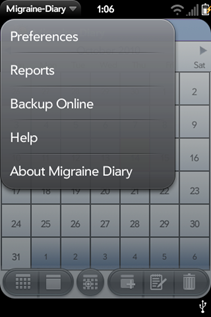
The Migraine Diary menu is
available by pressing the top left arrow by the Migraine Diary program name.
The following table lists the options available through the main menu. |
|||||||||||||
|
|
|
||||||||||||
|
Migraine Diary
Menu |
|
||||||||||||
|
|
|||||||||||||
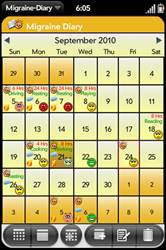
The
following table lists the buttons and their functionality found in the Migraine Diary application.
|
Button |
Functionality |
|
|
List View Pressing this button
displays the “List View” of the health information. |
|
|
Calendar View Pressing this button displays the
“Calendar View” of the health information. |
|
|
Today Pressing this button
puts the user on Today’s date. |
|
|
Add New Pressing this button takes the user
to the “Add New” information screen.
The user will add health information for the selected date. |
|
|
Edit Information Pressing this button
takes the user to the “Edit” information screen. The user is able to edit the previously
added health information for the selected date. |
|
|
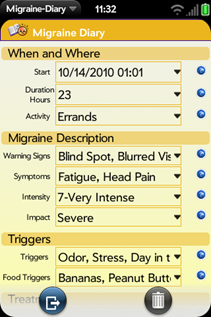
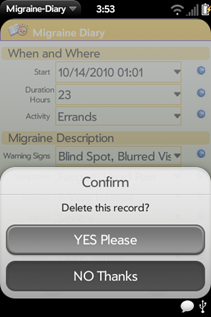
Delete Pressing this button deletes the
previously added health information for the selected date. You will be asked to confirm your action
before it is deleted. |
|
|
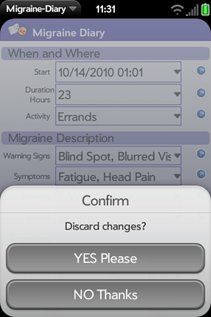
Exit Scene Pressing this button
takes the user back to the previous scene without saving any changes. |
|
|
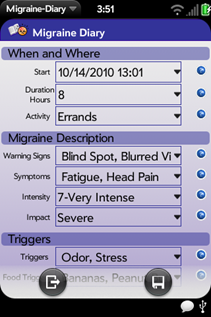
Save Pressing this button saves the
added or changed health information. |
|
|
Help Help is available nearly
everywhere. Press this to get
detailed help whenever needed. |


|
|
|
|
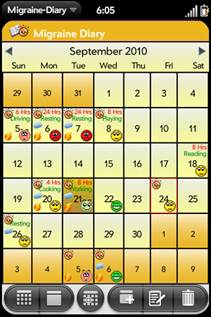
Calendar View To customize the look & feel of the calendar, select the
Preferences option from the menu |
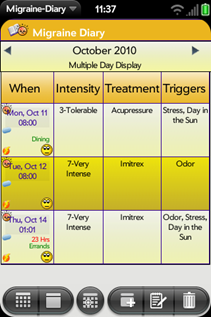
List View To customize the fields that display in this list, select
the Preferences option from the menu |
|
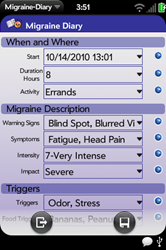
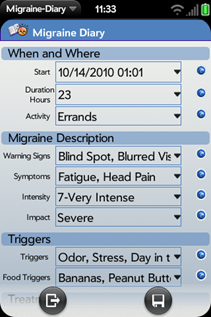
To add new
migraine information for the current day, select the date by highlighting the
date from the Calendar View then press this add button. The following “Add”
information screen is displayed.
Enter the migraine information and then press “save”. |
|
|
Start
|
Enter the start of the migraine attack. The “Set Date and Time” appears (Figure x)
allowing you to set this.
|
|
Duration Hours
|
Enter the duration of the Migraine attack. The “Set Date and Time” appears (Figure x)
allowing you to set this.
|
|
Activity
|
What were you doing when your migraine attack started?
|
|
Warning Signs
|
Select any signals that you observed before your attack.
|
|
Symptoms
|
Select all symptoms you are experiencing during this
attack.
|
|
Intensity
|
On a scale of 1 to 10, how bad do you feel compared to
other migraines you have had?
|
|
Impact
|
Measure the impact that this migraine had on your life. Did you have to miss work or school? If you had to cancel an event, it at
least had a moderate impact on your life.
|
|
Triggers
|
Select all triggers that could be the cause of your migraine. It is essential that you select everything
that occurred within 24 hours of the attack.
This will help you identify possible triggering events of your attacks.
|
|
Food Triggers
|
Select all food triggers that could be the cause of your
migraine. It is essential that
you select everything that occurred within 24 hours of the attack.
|
|
Treatment
|
If you decided to take any medication or even if you are
on prophylactics, select the treatment that was taken.
|
|
Did Treatment Help?
|
If you took anything to help your migraine, did it help?
|
|
Comments
|
Enter additional remarks regarding this attack.
|
|
Overall
|
Overall how do you feel about this attack?
|
|
|||||||||||||||||||||||||||||||||||||||||||||||||||||||||||
|
|
|
Editing Entering migraine information |
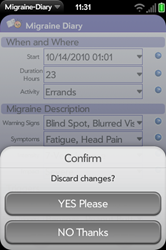
Saving You will be asked to confirm your action if you discard
before saving your changes |
|
|
|
Deleting
To
delete information for the current day, select the date by highlighting the
date from the Calendar View or List View and then press this delete
button. You will be asked to confirm
your action before it is deleted. |
|
|
|
|
|
Deleting Select the “Trashcan” button to
delete the selected days migraine information |
Confirmation You will be asked to confirm
your action before the entry is deleted |
|
|
|
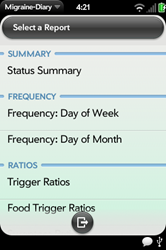
Reports
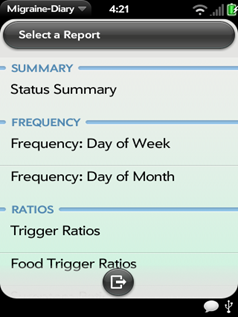
Reports are available by pressing the reports option from the top
left arrow by the Migraine Diary
program name. After you make your
report selection, you will enter the desired date range for your report. The
following lists the migraine reports available. |
||
|
|
||
|
|
|
|
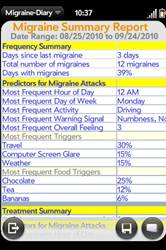
Summary
|
The “Status Summary” report summarizes your migraine information in one
report for the given date range. It
determines your predictors for your migraine attacks. It calculates the most frequent Hour of
Day, Day of Week, and Activity of your migraine attack. Additionally, the most frequent triggers
and food triggers are listed. If you
are trying out different treatments, this analyzes your treatment information
and informs you of which tread was most effective. Since this report identifies your triggers
and frequency patterns, it will be most helpful in managing and preventing
your migraines.
|
|
Frequency
|
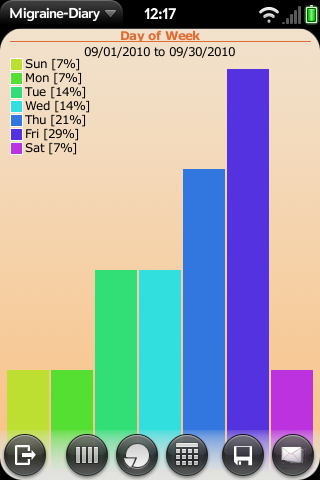
The “Day of Week” and “Day of Month” frequency reports provide you with
which days are your problem days.
This will allow you to examine more closely these days to try and find
a problem and eliminate it. You may
view this data in either bar graph, pie chart or in a linear chart.
|
|
Ratio
|
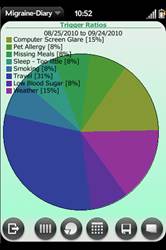
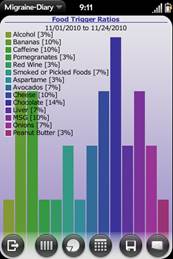
The “Trigger”, “Food Trigger”, “Symptom” and “Warning Sign” ration
reports provide you with a graphical look at your predictors. You may view this data in either bar graph,
pie chart or in a linear chart.
|
|
Profile
|
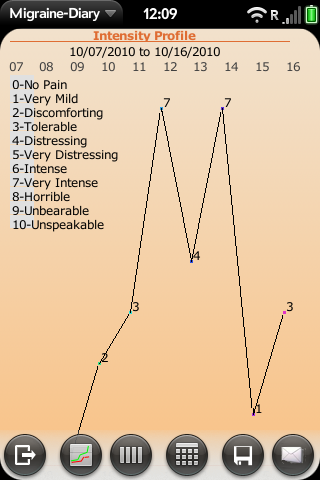
The “Intensity” and “Overall” profile provides you with a linear graph
of your migraine intensity. You can
see where in the months that your intensity or overall feeling peaks and
valleys.
|
|
|
||
|
|
||
|
|
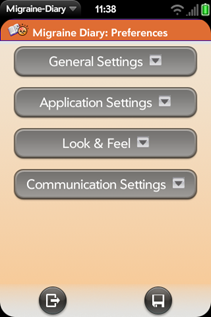
There are four Preference
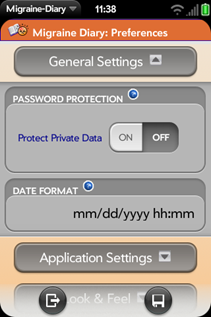
sections. In the “General Settings” drawer you have access to the
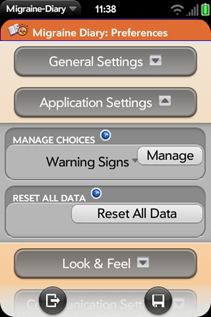
password protection and date formats. In the “Application Settings” drawer you can access the
“Reset Data” function as well as managing your customizable drop down lists. In the “Look & Feel” drawer you can access your color
theme and what visual indicators or data appears on your calendar and
lists. |
|
|
|
||
General
Settings
|
||
|
Password
Protection Tap the “ON” button to enable password
protection for your migraine data. If
you enable password protection you will be prompted for the password. There are no restrictions on password
length or content. Remember this
password, as you will be prompted for this password each time you start your
Migraine Diary application. To disable
the password protection just press the “OFF” button. Date
Format Select the correct date format for
your region from the drop-down list. |
|
|
|
|
||
Application
Settings
|
||
|
|
Manage
Choices The Manage Choices section allows you
to add data to and edit your customizable drop-down lists. All lists that appear in your diary can be
added to through this option. For
instance, if you have a particular “Warning Sign” that does not appear in the
list, you can add it here. When you
add information to your diary, you can also at that time add new entries to
these lists. These entries can be
edited and deleted here also. Reset
All Data If you want to erase all of your data
and start new, you can do this by pressing the “Reset All Data” button. Since there is no way to reverse this
process, you will be asked to confirm if you really want to do this. NOTE: you can not undo this action, so be
careful and make sure that you do not want the data that is currently in your
diary. |
|
|
|
|
|
|
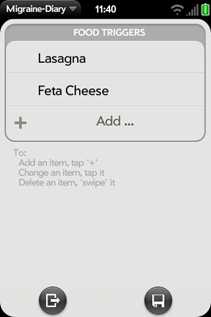
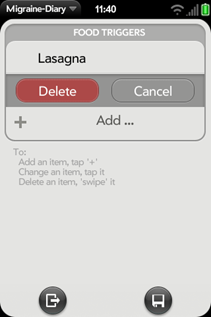
Manage Choice List Adding foods to the Food Triggers List.
To Add an item, you tap the ‘+’. To Change an item, you tap it; To Delete
an item, you ‘swipe’ it and the Delete appears (following figure) |
Deleting an Item Deleting a food from the Food Triggers List |
|
|
|
||
Look
& Feel
|
||
|
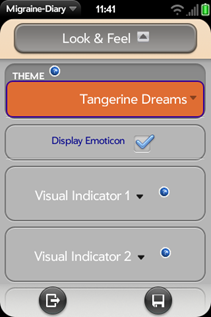
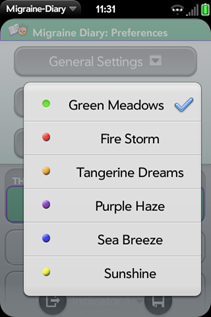
Theme Customize your diary look by choosing
from one of the six color themes. Display
Emoticon You have the ability to select an
emoticon that represents an overall feeling about each entry in your
diary. These emoticons appear on your
calendar and list views. If you don’t
want them to display, uncheck the display emoticon checkbox. Visual
Indicators Visual Indicators help you understand your
data. They represent an event that
occurred on a specific day. These
settings allow you to select which event and associate an icon with that
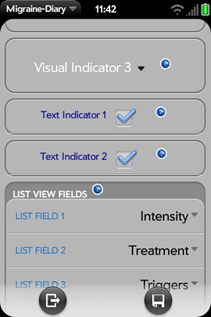
event. Text
Indicators The text that displays on your
calendar can be turned on or off here. List
View Fields The inforamtion that displays on the
List View, can be changed from here. |
|
|
|
|
||
|
Theme In the Preferences, Look & Feel drawer, you can customize your look
by choosing from six color themes. |
Text Indicators In the Preferences, Look & Feel drawer, you can turn off the display
of the text that displays on your calendar.
“Text Indicator 1” displays the Duration of your migraine attack. “Text Indicator 2” displays the activity
that occurrd when your attack began. |
|
|
|
||
|
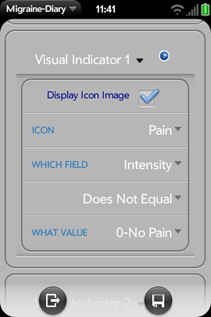
Visual Indicators You can
customize 3 visual indicators that display in your diary |
Visual
Indicators Visual Indicators help you understand
your data. They represent an event
that occurred on a specific day. These
settings allow you to select which event and associate an icon with that
event. You can display up to 3 visual
indicators on your diary. For each visual indicator, you select
which icon to display if the condition specified is true. To specify the event, you must select the
field, operator and value of the event.
In the example to the left, the “Pain” icon will display if the
“Intensity” field equals any value other than “No Pain”. This indicates that you have pain on that
day, so the “Pain” icon appears. |
|
|
|
|
|
|
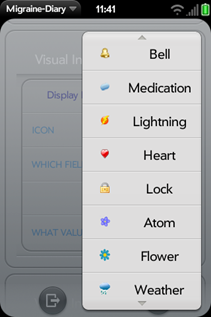
Visual Indicators: Icon List In the
Preferences, Look & Feel drawer, you can customize your look by choosing
from several visual indicators |
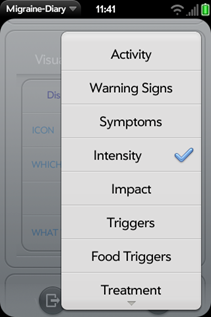
Visual Indicators: Field List In the
Preferences, Look & Feel drawer, you can select the field that will
trigger the visual icon to display on your calendar |
|
|
|
|
|
|
|
||